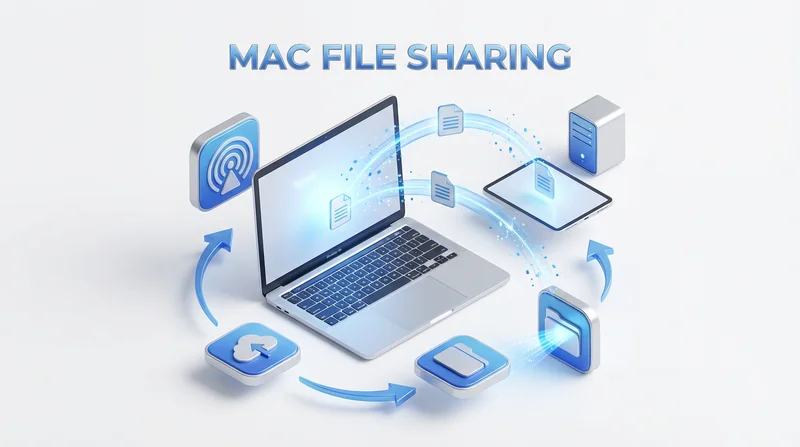
Mac users have excellent built-in file sharing options, but they're not always the best choice for every situation. This guide covers the complete landscape of file sharing for Mac users – from Apple's ecosystem tools to third-party solutions that fill the gaps.
Built-in Mac File Sharing Options
AirDrop
Best for: Local transfers to other Apple devices
Pros:
- Instant, wireless transfer
- No internet required
- Works with iPhone, iPad, Mac
- No file size limits
- No quality loss
Cons:
- Apple devices only
- Recipients must be nearby
- Can be unreliable (Bluetooth/WiFi issues)
- No tracking or record
iCloud Drive
Best for: File sync across Apple devices
Pros:
- Deep macOS integration
- Automatic sync across devices
- Files on Demand (optimize storage)
- Shared folders
Cons:
- Only 5GB free
- Paid storage is expensive
- Less ideal for non-Apple recipients
- Shared links can be clunky
Mail Drop
Best for: Large email attachments
Pros:
- Up to 5GB attachments
- Automatic for large files in Apple Mail
- Works with any email recipient
Cons:
- Links expire after 30 days
- Counts against iCloud storage
- No tracking
Third-Party Solutions
GetShared
Best for: Professional file sharing, large files, external recipients
Pros:
- Large file support (up to 200GB)
- Works from any browser (no app needed)
- Recipients don't need accounts
- Download tracking
- Password protection
- Custom branding
Cons:
- Requires internet
- Not for local transfers (use AirDrop)
Dropbox
Best for: Sync and collaboration with mixed device users
Pros:
- Excellent Mac app
- Smart Sync
- Good collaboration features
- Works cross-platform
Cons:
- Expensive for storage
- Only 2GB free
- 2GB file limit on free plan
See our Dropbox vs GetShared comparison.
Google Drive
Best for: Google ecosystem users, collaboration
Pros:
- 15GB free
- Excellent collaboration
- Native Mac app
- Integration with Google Workspace
Cons:
- Privacy concerns
- File conversion can change formatting
- Slower uploads for large files
See our Google Drive vs GetShared comparison.
Choosing the Right Solution
| Scenario | Best Option |
|---|---|
| Sharing with iPhone/iPad user nearby | AirDrop |
| Sharing with Windows/Android user nearby | GetShared or Snapdrop |
| Sending large files to client | GetShared |
| Ongoing collaboration with team | GetShared Teams, Dropbox, or Google Drive |
| Syncing between your own Mac devices | iCloud Drive |
| Sharing photos with family | iCloud Shared Albums or GetShared |
| Professional client delivery | GetShared (with branding) |
| Video project handoff | GetShared |
For Creative Professionals
Mac users often work with large creative files. See our guides on:
- Sending large video files
- Sharing RAW photo files
- Sending audio files
- File sharing for creative professionals
Security Considerations
Mac users should consider:
- AirDrop – Set to "Contacts Only" to avoid unsolicited files
- iCloud – Enable 2FA on Apple ID
- Third-party services – Use password protection for sensitive files
Workflow Tips for Mac Users
Quick Share from Finder
Right-click any file → Share → Choose AirDrop, Mail, or third-party apps you've set up.
Drag and Drop
GetShared works great with drag-and-drop in Safari or Chrome – just drag files into the browser.
Automate with Shortcuts
Use Shortcuts app to create automated workflows for frequent sharing tasks.
Conclusion
Mac users have excellent options for file sharing:
- AirDrop – Best for local Apple-to-Apple transfers
- iCloud – Best for syncing your own devices
- GetShared – Best for sharing with anyone, anywhere, especially large files
- Google Drive/Dropbox – Best for ongoing team collaboration
For most external file sharing, GetShared offers the best combination of ease, features, and professionalism. Try it free – works beautifully on Mac.