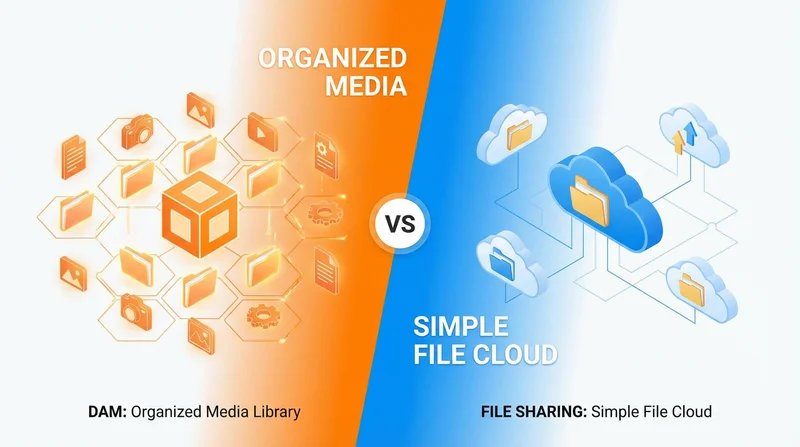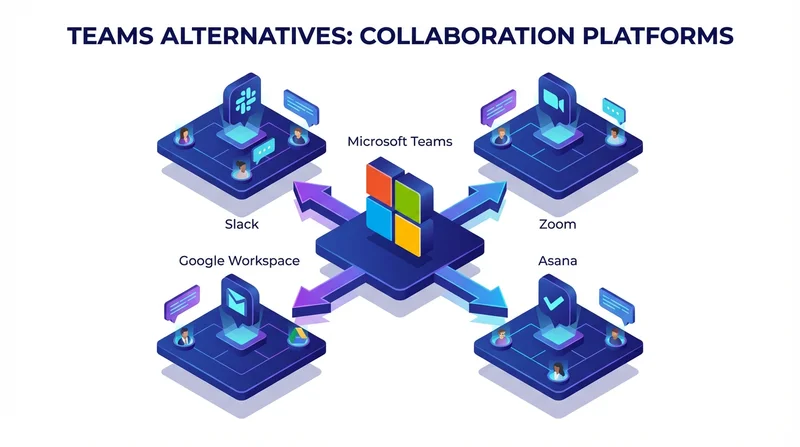
Microsoft Teams includes file sharing through SharePoint, but it is not always the best option for every scenario. Understanding alternatives helps you choose the right tool for each situation.
Teams File Sharing Limitations
External Sharing Complexity
Sharing with people outside your organization can be complicated:
- Requires guest accounts or complex permissions
- Recipients may need Microsoft accounts
- Admin policies may restrict external sharing
Large File Challenges
- SharePoint has file size limits
- Sync issues with very large files
- Performance can degrade
Branding
SharePoint sharing pages are Microsoft-branded, not yours.
When Teams Works Well
- Internal team collaboration
- Day-to-day document sharing within organization
- Integration with other Microsoft 365 tools
- Users already in Teams environment
When to Use Alternatives
External Client Sharing
For sharing with clients, vendors, or partners:
- No account required – Less friction
- Branded pages – Professional appearance
- Simple link sharing – No guest accounts needed
Large Files
For files that challenge SharePoint limits:
- Video files
- Design files
- Large archives
Simple One-Time Shares
When you just need to send files without ongoing collaboration:
- Faster than setting up Teams channels
- Expiring links for temporary access
GetShared as Complement to Teams
Use Teams for internal collaboration, GetShared for:
- External sharing – Easy client file delivery
- Large files – Up to 200GB without issues
- Branded experience – Professional download pages
- Tracking – Know when files are downloaded
Comparison
| Feature | Teams/SharePoint | GetShared |
|---|---|---|
| Internal sharing | Excellent | Good |
| External sharing | Complex | Simple |
| Large files | Limited | 200GB |
| Branding | Microsoft | Your brand |
| No account for recipient | Requires guest | Yes |
Try GetShared free alongside Teams.