File sharing is a daily activity in business, yet poor practices waste time, create confusion, and can damage professional relationships. This guide covers the unwritten rules of file sharing etiquette that separate professionals from amateurs.
The True Cost of Poor File Sharing
Poor file sharing practices lead to:
- Wasted time – Searching for the right version, extracting from broken archives
- Miscommunication – Wrong file sent, unclear naming causes confusion
- Lost productivity – "Can you resend that?" "Which file is current?"
- Security risks – Sensitive files shared without protection
- Poor impressions – Disorganized files reflect on your professionalism
DO: Use Clear, Descriptive File Names
Good File Naming
Acme_ProjectProposal_2026-02-04_v2.pdf
ClientName_Invoice_INV-2026-0234.pdf
2026-Q1_Sales_Report_Final.xlsx
Bad File Naming
Document1.pdf
final_FINAL_v3_USETHISONE.pdf
Asset 2 (1) copy.png
IMG_4523.jpg
File Naming Best Practices
- Include date in YYYY-MM-DD format (sorts chronologically)
- Use underscores or hyphens, not spaces
- Include version numbers for evolving documents
- Make names self-explanatory without context
- Keep names reasonably short (under 50 characters)
DON'T: Send Files Without Context
Never just send a link with no explanation. Include:
- What the files are
- What you need from the recipient
- Any deadlines or time sensitivity
- Password if applicable (in separate message)
- How long the link will be active
Good Example
"Hi Sarah, Attached is the Q1 marketing report with updated figures from yesterday's meeting. I've included both the full report and an executive summary. Could you review by Friday and let me know if the budget projections look accurate? Download link: [link] Password: [sent separately via Slack] Link expires: March 15 Thanks!"
Bad Example
"Here you go [link]"
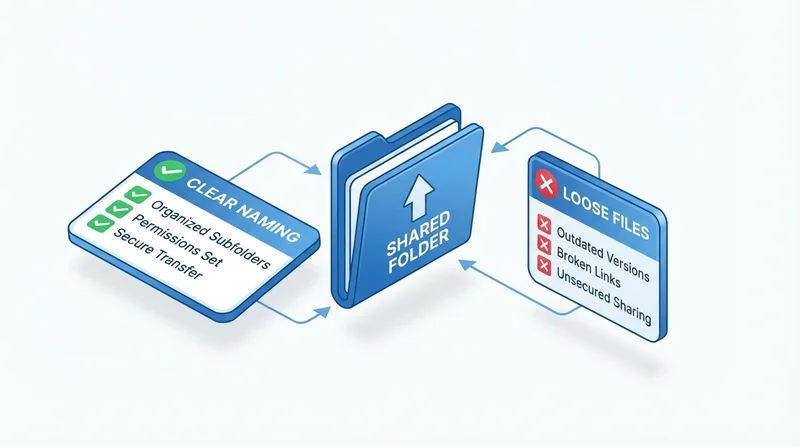
DO: Organize Files Logically
When sharing multiple files, organize them in a clear folder structure:
Project_Deliverables/
├── 01_Design_Assets/
│   ├── Logos/
│   ├── Icons/
│   └── Photography/
├── 02_Documents/
│   ├── Contracts/
│   └── Specifications/
├── 03_Final_Files/
└── README.txt
Number folders to control sort order. Include a README explaining the structure.
DON'T: Share Unnecessarily Large Files
Consider what the recipient actually needs:
- For review – Compressed/lower resolution often sufficient
- For editing – Full resolution originals needed
- For reference – Smaller versions work fine
If sending both high-res and preview files, organize clearly:
Photos/
├── HighRes_Print/
└── LowRes_Preview/
DO: Use Appropriate Security
Match security to content sensitivity:
- Public information – Basic link sharing is fine
- Internal business documents – Password protection
- Confidential/legal documents – Password + expiration + limited downloads
- Highly sensitive – All of the above + end-to-end encryption
See our complete security best practices guide.
DON'T: Assume Everyone Has the Same Software
Before sending files, consider:
- Can they open this format?
- Do they have the fonts you used?
- Will the file display correctly on their system?
Format Recommendations
- Documents for review – PDF (universally readable)
- Editable documents – Word (.docx) or Google Docs link
- Spreadsheets – Excel (.xlsx) or CSV for simple data
- Images – JPEG or PNG for general use
- Videos – MP4 with H.264 codec (universal playback)
DO: Confirm Receipt of Important Files
For critical files, verify delivery:
- Use download tracking to see when files are accessed
- Request read receipt for emails
- Follow up if no confirmation within reasonable time
DON'T: Keep Share Links Active Forever
Old share links are a security risk. Use expiration dates appropriate to the content:
- Quick review – 1-7 days
- Project delivery – 30 days
- Archive access – Set reminder to review
DO: Respect File Ownership and Copyright
- Don't share files you don't have rights to distribute
- Credit creators when sharing their work internally
- Don't modify files marked as final without permission
- Respect confidentiality even after projects end
DON'T: Use Personal Cloud Storage for Business
Mixing personal and business files creates problems:
- Security and compliance issues
- Difficulty separating files when leaving company
- Unprofessional appearance
- Storage limit conflicts
Use dedicated business accounts or services.
DO: Maintain Version Control
For evolving documents:
- Include version numbers in file names (v1, v2, v2.1)
- Keep a change log for major documents
- Mark final versions clearly ("_FINAL" or "_Approved")
- Archive old versions, don't delete them
See our complete file versioning guide.
DON'T: Send Files via Chat Without Warning
Large files in Slack, Teams, or other chat platforms:
- Slow down the application
- May fail silently for large files
- Get lost in message history
- Count against chat storage limits
Instead, share a link to the file with context about what it is.
DO: Match the Medium to the Message
| Situation | Best Method |
|---|---|
| Quick reference file | Chat with link |
| Formal delivery | Email with link |
| Ongoing collaboration | Shared folder |
| Client deliverables | Branded share page |
| Sensitive documents | Secure link via email, password via phone |
DON'T: Forget Mobile Users
Many people check files on mobile devices. Ensure:
- Files are viewable on mobile (avoid obscure formats)
- File sizes are manageable for mobile data
- Your sharing service works on mobile
- Consider providing mobile-friendly versions of large documents
DO: Be Responsive to File Requests
When someone requests files:
- Respond promptly, even if just to acknowledge
- Provide realistic timeline if you can't send immediately
- Send exactly what was requested (don't substitute)
- Confirm you've sent and verify receipt
Summary: File Sharing Etiquette Checklist
| Do | Don't |
|---|---|
| Use descriptive file names | Use generic names like "Document1" |
| Include context with links | Send bare links without explanation |
| Organize files logically | Dump files in random order |
| Use universal formats | Assume everyone has your software |
| Apply appropriate security | Share sensitive files without protection |
| Set expiration dates | Leave links active forever |
| Confirm receipt | Assume files were received |
| Maintain versions | Create naming confusion |
Following these practices shows respect for your colleagues' time and demonstrates professionalism. Use GetShared for professional file sharing with tracking, security, and branding features. Try it free.