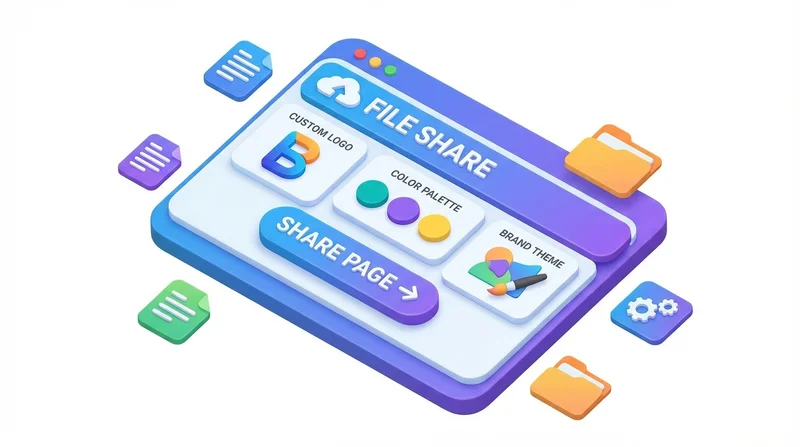
When you share files with clients, the download page is part of your brand experience. Branded file sharing pages display your logo and colors, creating a professional impression that reinforces your identity.
Why Brand Your File Sharing
Professional Impression
- Consistent brand experience
- More trustworthy than generic pages
- Shows attention to detail
Client Confidence
- Recipients know files are from you
- Reduces confusion about legitimacy
- Professional delivery matches professional work
Brand Reinforcement
- Every touchpoint builds brand recognition
- Consistent visual identity
- Stand out from competitors using generic services
Setting Up Branding in GetShared
- Access account settings
- Go to branding section
- Upload your logo
- Set brand colors
- Save changes
All your share pages will now display your branding.
Branding Elements
Logo
- Displayed on download page
- Recommended: SVG or high-res PNG
- Keep it simple and recognizable
Colors
- Primary brand color
- Accent colors
- Match your website/materials
Use Cases
Client Deliverables
Photographers, designers, agencies – deliver work with your brand visible.
Business Documents
Contracts, proposals, reports – professional presentation.
Marketing Materials
Press kits, brand assets – reinforce brand while sharing.
Combining with Other Features
Branded pages work with:
See custom branding guide for detailed setup instructions.