Proper permissions ensure the right people have access to the right files – no more, no less. Setting up team permissions correctly from the start prevents security issues and confusion down the line.
Understanding Permission Levels
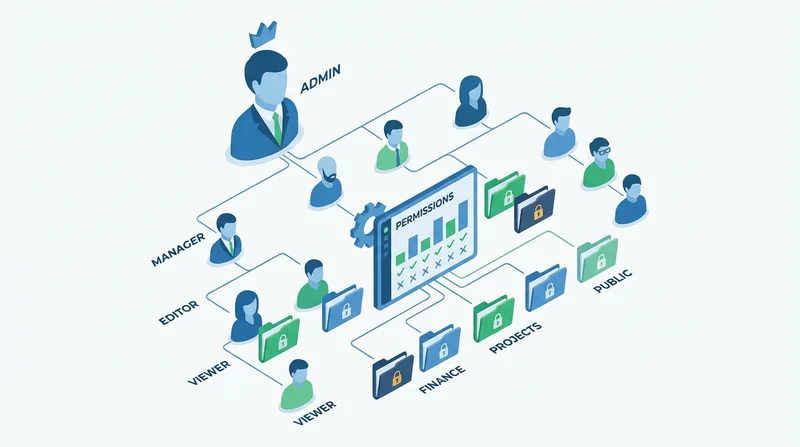
Common Permission Types
- Owner/Admin – Full control including deletion and permission management
- Editor – Can upload, modify, and delete files within their access
- Contributor – Can upload and modify, but not delete
- Viewer – Read-only access, can download but not change
Scope of Permissions
Permissions can apply at different levels:
- Organization-wide – Access to everything
- Folder-specific – Access to particular folders only
- File-specific – Access to individual files
Setting Up Permissions
Step 1: Define Roles
Before setting permissions, define roles in your organization:
- Who needs to manage the system? (Admins)
- Who creates and edits content? (Editors)
- Who only needs to view? (Viewers)
- External parties? (Limited access)
Step 2: Create Folder Structure
Organize folders to match permission needs:
Company Files/
├── Public/ (all employees)
├── Projects/ (project teams)
├── Finance/ (finance team only)
├── HR/ (HR team only)
└── Executive/ (leadership only)
Step 3: Assign Permissions
In GetShared team settings:
- Create or select folder
- Open sharing/permissions settings
- Add team members or groups
- Set appropriate permission level
- Save changes
Permission Best Practices
Principle of Least Privilege
Give users minimum access needed for their role. It's easier to grant additional access than to recover from over-sharing.
Use Groups
Instead of assigning individual permissions, create groups (Marketing, Engineering, etc.) and assign permissions to groups. This makes management easier.
Regular Reviews
Review permissions quarterly:
- Remove access for departed employees
- Adjust for role changes
- Verify folder access is still appropriate
Document Your Structure
Maintain documentation of:
- What folders exist
- Who has access to what
- Why certain access is granted
Common Mistakes
- Starting with everyone as admin – Creates security risk
- Ignoring departed employees – Access remains active
- Over-complicating – Too many folders and levels
- Not documenting – No one knows why permissions are set as they are
External Sharing
For sharing outside your team:
- Use secure external sharing
- Apply password protection
- Set expiration dates
- Track access with analytics
Conclusion
Effective permission management:
- Follows least privilege principle
- Uses groups for easier management
- Gets reviewed regularly
- Is documented clearly