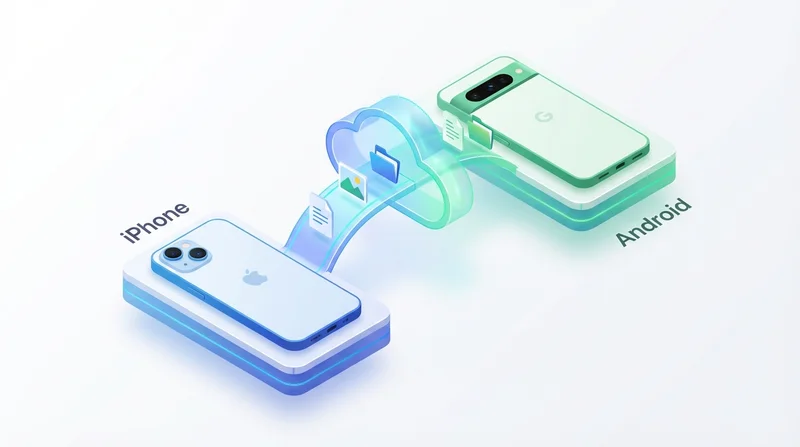
One of the most frustrating experiences in our connected world is trying to share files between an iPhone and an Android device. While Apple users have AirDrop and Android users have Nearby Share, these solutions don't work across platforms. This guide explores the best methods for seamless file sharing between iOS and Android in 2026.
Why Cross-Platform Sharing Is Still Challenging
Apple and Google have created excellent file sharing solutions for their own ecosystems:
- AirDrop (Apple) – Instant, wireless file sharing between Apple devices
- Nearby Share (Google) – Android's equivalent, works with Android and ChromeOS
But these technologies are intentionally incompatible. Apple has no business incentive to make AirDrop work with Android, and vice versa. This leaves users looking for third-party solutions.
Method 1: Cloud-Based File Sharing (Best for Most Users)
Cloud-based solutions like GetShared work identically on both platforms, making them the most reliable option for cross-platform sharing.
How It Works
- Upload your file to the cloud from either device
- Generate a share link
- Send the link to the recipient via text, email, or any messaging app
- Recipient opens the link and downloads the file
Advantages
- Works on any device – iPhone, Android, Windows, Mac, Linux
- No app installation required – Recipients just need a web browser
- Share with multiple people – One link can be sent to many recipients
- Large file support – Share files too large for messaging apps
- Security options – Add password protection and expiration dates
Best Cloud Services for Cross-Platform Sharing
| Service | Free Storage | Max File Size (Free) | Account Required |
|---|---|---|---|
| GetShared | 20 GB | 5 GB | No (for recipients) |
| Google Drive | 15 GB | 5 TB (paid) | Yes (for uploads) |
| Dropbox | 2 GB | 2 GB (free) | Yes |
| iCloud | 5 GB | 50 GB (paid) | Yes |
GetShared stands out because recipients don't need an account to download files – they just click the link. This removes friction when sharing with people who don't use the same service. Learn more about sharing files without requiring an account.
Method 2: Cross-Platform Apps
Several apps are specifically designed to bridge the iOS-Android gap:
Send Anywhere
Uses a 6-digit code system. Sender generates a code, recipient enters it to receive the file. Works well for in-person transfers.
Snapdrop
A web-based AirDrop alternative. Both devices visit the same website on a local network and can share files directly. No app installation needed.
SHAREit
Popular in some regions, but has been criticized for privacy concerns and excessive ads. Use with caution.
Method 3: Messaging Apps
Most messaging apps work on both platforms and can transfer files:
- WhatsApp – Up to 2 GB per file, but compresses images and videos
- Telegram – Up to 2 GB, better quality preservation
- Signal – Secure, but limited file size
- Facebook Messenger – 25 MB limit for most files
The main drawback of messaging apps is file size limits and quality compression. For photos, WhatsApp significantly reduces quality unless you send as a "document" rather than a photo. For large files, these apps simply won't work.
Method 4: Email
Email works on every device but has severe limitations:
- Gmail – 25 MB attachment limit
- Outlook – 20 MB limit
- iCloud Mail – 20 MB limit (Mail Drop for larger)
For anything beyond small documents, email isn't practical. See our guide on bypassing email attachment limits.
Method 5: Physical Methods
USB Cable Transfer
With the right cables and adapters, you can connect an iPhone to a computer and then transfer to Android (or vice versa). This is cumbersome but works offline and handles large files.
SD Card
If the Android device has an SD card slot, you could use an adapter to transfer files. iPhones don't have SD card slots, but Lightning/USB-C SD card readers exist.
Best Practices for Cross-Platform Sharing
1. Use Universal File Formats
Stick to formats that work everywhere:
- Documents – PDF (not Pages or Google Docs format)
- Images – JPEG, PNG (avoid HEIC if sharing with Android)
- Videos – MP4 with H.264 codec
2. Convert HEIC to JPEG
iPhones capture photos in HEIC format by default, which older Android devices may not support. Convert to JPEG before sharing, or enable "Most Compatible" in iPhone camera settings.
3. Check File Size Before Choosing Method
- Under 10 MB – Messaging apps work fine
- 10 MB - 2 GB – Telegram or dedicated apps
- Over 2 GB – Cloud sharing services like GetShared
Sharing Different File Types
Photos
For sharing photos between iPhone and Android, consider quality requirements. For casual sharing, messaging apps are convenient. For original quality photos (especially from iPhone's 48MP cameras), use a cloud service that doesn't compress. Read our guide on sharing photos with family.
Videos
Video files are too large for most direct sharing methods. Cloud services are the only practical solution for sharing videos. See our dedicated guide on sharing videos online.
Documents
PDFs and Office documents are usually small enough for any method. However, cloud sharing gives you tracking to confirm receipt.
Music
Audio files are moderate in size. Any method works, but cloud sharing is cleanest.
Security Considerations
When sharing files across platforms, consider security:
- Use encrypted services – GetShared provides end-to-end encryption for your files
- Set expiration dates – Don't leave share links active forever
- Password protect sensitive files – Add an extra layer of security
- Avoid unknown apps – Some file sharing apps have been caught collecting user data
For Business Use
If you regularly share files between iPhone and Android users for business purposes, consider these features:
- Download tracking – Know when files are accessed with GetShared's analytics
- Branded sharing pages – Professional presentation with custom branding
- Team folders – Organized sharing with team collaboration features
Future of Cross-Platform Sharing
The EU's Digital Markets Act may eventually force Apple to open up some features, potentially including AirDrop interoperability. However, until that happens (if ever), third-party solutions remain the best option.
Cloud-based sharing is increasingly the default choice regardless of platform. As internet speeds improve and cloud storage becomes cheaper, the distinction between local and cloud transfer becomes less relevant.
Conclusion
The best method for sharing files between iPhone and Android depends on your specific needs:
- For occasional, small files – Messaging apps like Telegram
- For large files or professional use – Cloud services like GetShared
- For in-person transfers – Snapdrop or Send Anywhere
- For maximum security – GetShared with password protection
Cloud-based sharing offers the most flexibility and features. GetShared works seamlessly on both platforms, supports large files, and doesn't require recipients to create accounts. Try it free for your next cross-platform file transfer.